Insights
How to listen to your newsletters as a daily podcast
Three real ways to turn your newsletter pile into audio you can actually keep up with: one automated, one free with elbow grease, one read-aloud.
You subscribed to every one of them on purpose. The tech newsletter. The finance newsletter. The one about urban planning that a friend swore would change your life. And now your unread count has three digits, and reading them all was never going to happen. Not today. Not ever.
The short answer
Three real methods turn newsletters into audio you can keep up with. Harkwire does it automatically: set up a one-time auto-forward rule to a private address, and a short episode lands in your private podcast feed by 7am. Google's Gemini Notebook (renamed from NotebookLM in July 2026) turns newsletter text into a two-host audio overview, but you do the work by hand for each one, and the free tier caps you at 3 a day. Read-aloud apps are the cheapest option, but they read every word flat, with no summary and no feed.
Method 1: Harkwire, the set-it-and-forget-it machine
Full disclosure: I built this one. You are reading the founder's blog, so the conflict of interest is disclosed and, honestly, kind of the point.
I built Harkwire because I was drowning in unread newsletters. Here is the deal. You get a unique forwarding address. Set up a one-time auto-forward rule, or pick newsletters from the directory, and the only messages Harkwire ever sees are the ones you explicitly route to it. Your inbox stays private. Newsletter content is processed in memory and never stored after the episode is generated.
Overnight, two AI hosts, Alex and Sam, read everything that arrived, keep what matters, and talk it through. Think of it as a morning radio show about your inbox. The episode lands in your private podcast feed by 7am in your timezone. Brief (1–3 min) and Morning Update (3–6 min) on every plan, plus Deep Dive (6–12 min) on the Pro plan.
Setup is a one-time job. After that it runs itself. You do nothing. Doing nothing is the whole product.
Here is what an episode sounds like:
What it costs:
- Price. $4.99 USD per month for up to five newsletters, $9.99 USD per month for unlimited newsletters, or $39.99 USD per month for Pro (Deep Dive episodes, a watchlist, answers from your archive and on-demand episodes), after a 7-day free trial. A card is required to start the trial.
- Signup. Requires a Google account.
Now the fine print, because there is always fine print. Three honest limits. Paid newsletters are not supported yet; that is on the roadmap. It is built for newsletters specifically, not for arbitrary web links or PDFs. And the private feed will not play in Spotify, which does not let you add a show by URL.
Method 2: Gemini Notebook, the free lunch you assemble yourself
Google's Gemini Notebook turns pasted text or documents into a surprisingly good two-host audio conversation. Two AI people. Bantering. About your newsletter. It is genuinely fun to listen to. There is just one problem: you are the entire production staff.
The official workflow is: create a notebook, add at least one source, click Generate in the Notebook guide. For large notebooks, generation can take several minutes. Then do it again tomorrow. And the day after. For every newsletter.
The free tier gives you 3 Audio Overviews per day, up to 50 sources per notebook, with each source up to 500,000 words or 200 MB. Supported inputs include web URLs, public YouTube URLs, pasted text, and documents. There is no email import, so you cannot connect your inbox or forward newsletters to it. Paywalled pages are not supported either.
What you do not get: scheduling, automatic delivery, or a podcast feed. No schedule. No automation. No feed. Every newsletter means manual work: get the text out of your email, add it as a source, generate, wait, then play it in the app, share a link, or download the audio file. Nothing arrives on its own, and nothing appears in your podcast app.
The math works at small scale. For an occasional long read, it is a fine free tool. For a full inbox every morning, the manual steps and the 3-per-day cap break it. It is the difference between cooking dinner and running a restaurant.
Method 3: the robot voice that reads everything, including the ads
Read-aloud apps do exactly what the name says. They read the article's text aloud. Word. For. Word. They do not summarize. They do not converse. They do not pick stories across newsletters. Each article is manual: open it or paste it in, press play. No feed, no schedule, no digest.
The options: Speechify costs $139 per year or $29 per month, with a free plan that has basic features; the free reader tier offers ten voices and speeds up to 1.5x. ElevenReader from ElevenLabs has a free tier with 10 hours of listening per month, and the Ultra plan with unlimited listening costs $11 per month. On iPhone, Speak Screen is built in and free: turn it on under Settings, Accessibility, Spoken Content, then swipe down with two fingers to have the screen read aloud.
The whole category reads everything flat, including ads, photo captions, and boilerplate. One article at a time, started by hand. It is the audiobook version of eating your vegetables.
Getting the feed into your app (the easy part)
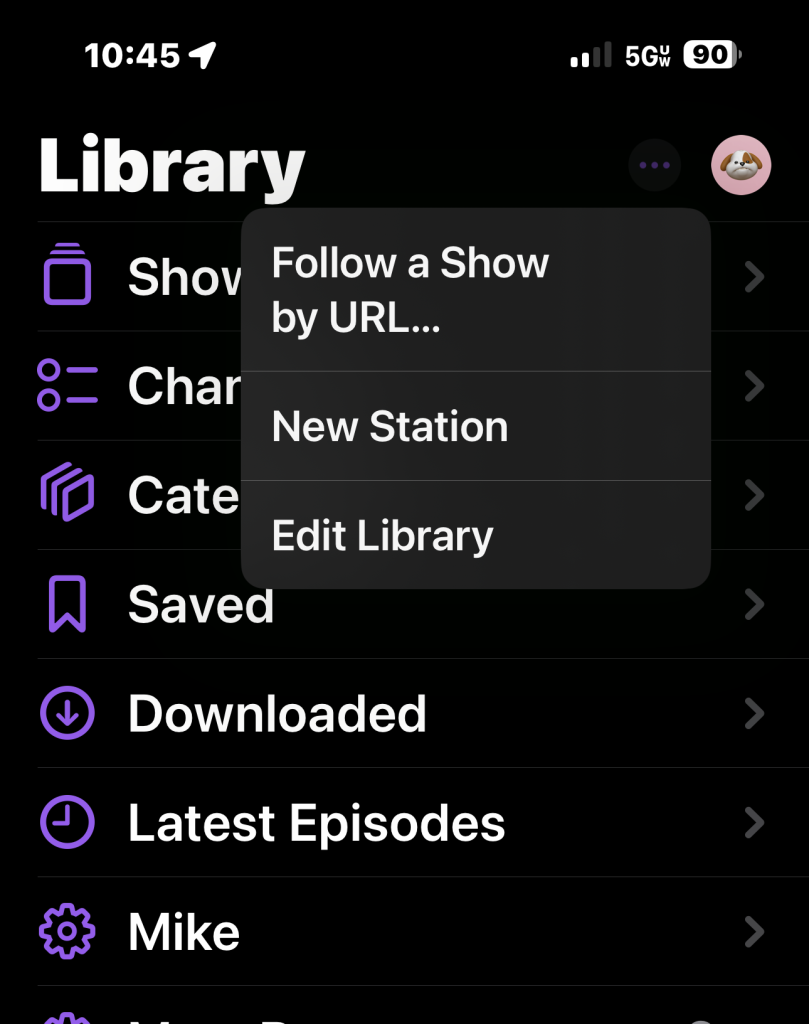
If your service gives you a private feed, adding it takes a few taps. In Apple Podcasts, the official steps are:
- Open Apple Podcasts and tap Library.
- Tap the ... button in the top right.
- Tap "Follow a Show by URL."
- Paste your private feed URL and tap Follow.
The same idea works elsewhere: in Overcast tap + then Add URL and paste the feed; in Pocket Casts paste the URL on the submit page and mark it Private so it never appears in search. The same flow works on Android.
Spotify is the one exception: it does not let you add a show by URL, so a private feed will not play there. Spotify does not allow manually added RSS feeds. Apple Podcasts, Overcast, and Pocket Casts all do.
So which one is for you?
- Automatic and scheduled: Harkwire is the only one of the three that delivers into a podcast app on its own. It is also the only paid option.
- Free and occasional: Gemini Notebook's manual route works for the odd long read.
- Free and immediate: your phone already reads text aloud; nothing to install.
They solve different problems. Pick the one that matches how many newsletters you actually have. Your unread count is not going to read itself.